Getting Started
EaseWeb allows you to communicate with a database to store any information permanantly. This is done through plain HTML! No code is required.
To start, the following script needs to be included at the start of yout html file:
<script>var ew_app = "USERNAME";</script>

<script src="//easeweb.ikigaisys.com/assets/js/jquery.min.js"></script>

<script src="//easeweb.ikigaisys.com/assets/js/ew.js"></script>
This will modify the HTML and make the magic happen. Each app has a "username" which is the URL of your app. Find my username/URL
What is all of this?
The best place to start is the Getting Started with pictures to get you started step by step on how to create an App and get its URL.
After making an application, you can test everything in this guide in the Playground.
Inserting or modifying data
The first step is to know what data you want to place and where. This is done through "tables". Click on "Tables" tab in the left menu.
Here we are creating a table called "contact_us".

Please create a Table "contact_us" before trying this (Read "Creating a Table" section)
A record can be anything: a blog post, a comment or even a user profile!
<form method="post" name="ew-form-insert" table="contact_us" autoremove>

        <div class="alert"></div>

    Name:

        <input type="text" name="name" /><br>

    Email:

        <input type="email" name="email" /><br>

    Message:

        <textarea type="text" name="message"></textarea><br>


        <input type="submit" />

</form>
Be careful about the permissions, the logged in user needs to have the permission to insert a new record in the table before anything.
A special div in the form with the class "alert" is used by default to display a message after either success or failure.
To update row id 3 you can use
index='3'. Table is selected with the "table" html attribute.<form method="post" name="ew-form-update" table="contact_us" index="3">
<div class="alert"></div>
Name:
<input type="text" name="name" /><br>
Email:
<input type="email" name="email" /><br>
Message:
<textarea type="text" name="message"></textarea><br>
<input type="submit" />
</form>
A special div in the form with the class "alert" is used by default to display a message after either success or failure.
The idea is to use the URL to fetch the index dynamically, this will work for both forms and fetches.
<form method="post" name="ew-form-update" table="contact_us" id="my-update-form">

    <div class="alert"></div>

        Name:

    <input type="text" name="name" /><br>

    Email:

        <input type="email" name="email" /><br>

    Message:

    <textarea type="text" name="message"></textarea><br>


        <input type="submit" />

</form>


<script>

    // GET "id" FROM THE URL!

    var id = new URL(document.location).searchParams.get("id");


    // TELL THE FORM TO USE THIS ID!

    document.getElementById('my-update-form').setAttribute('index', id);

</script>
index="4"
Fetching data
Please create a Table "contact_us" before trying this (Read "Creating a Table" section)
To fetch row id 2 you can use
index='2'. Table is selected with the "table" html attribute.<div name="ew-data-first" index='2' table="contact_us">
Name: <span name="ew-col" column="name"></span><br>
Email: <span name="ew-col" column="email"></span>
</div>
Output:
Name: hello
Email: hello@hello.com
Please create a Table "contact_us" before trying this (Read "Creating a Table" section)
The table is selected with the "table" html attribute.
<table border="1" name="ew-data-all" table="contact_us">

    <tr>

        <th>name</th>

        <th>email</th>

    </tr>

    <tr name="ew-data">

        <td name="ew-col" column="name"></td>

        <td name="ew-col" column="email"></td>

    </tr>

</table>
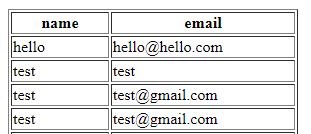
name="ew-data" identifies a "pattern element" that will be repeated or reused for each individual records. To select a particular column, you use the attribute "column" with the name of the column. Note the name="ew-col" attribute which is necessary.Output:
index html attribute or the filter html attribute.Filter can be used as follows
{

    "where": [{"id": {">=": 1}}]

}

{

    "where": [{"id": 1}],

    "order_asc": "id",

    "page": 0,

    "count": 10

}
- Where: A list of conditions to apply
- Order asc/dsc: Sort the result ascending or descending based on a column
- Page: Instead of getting everything at once, split to pages and get Nth page
- Count: Maximum number of records to get
Sample fetching using filter:
<div name="ew-data-first" filter='{"where": [{"id": {"<=": 4}}]}' table="contact_us">

    Name: <span name="ew-col" column="name"></span><br>

    Email: <span name="ew-col" column="email"></span>

</div>
Content unavailable.
EaseWeb specific tools
<ew-include>, You can include HTML files. Assuming that header.html and footer.html exist in your files, it will automatically place the code in those files in the place of these tags. Note that any relative path may be used here. (This functionality is available only for files existing on the EaseWeb server)<ew-include>header.html</ew-include>
<div class="body">
Hello World!
</div>
<ew-include>footer.html</ew-include>
If you have data that may or may not be changed in the future that needs to be applied to multiple files, use configuration variables that can be set in "settings" (This functionality is available only for files existing on the EaseWeb server)
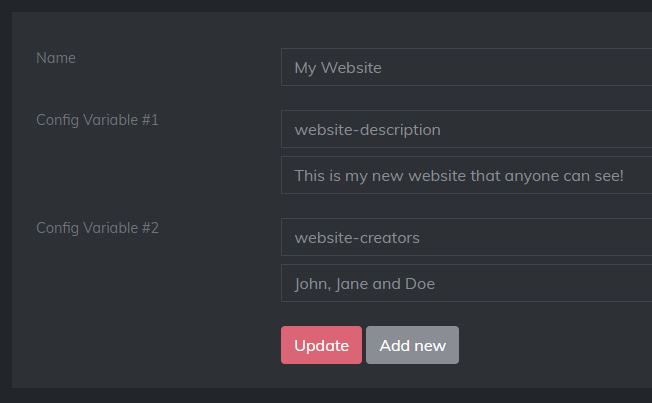
The above variables can be used as follows:
<div>

    <h2>About Website</h2>

    <ew-config>website-description</ew-config>


    This website has been created by <ew-config>website-creators</ew-config>

</div>